
Icons
Icons are symbols that help communicate and enhance an experience by providing intuitive and efficient navigation, conveying information concisely, and making it more visually appealing.
Icon Principles
Uniformity
Icons are visual, clickable elements that represent and provide access to functions, commands, files, devices or directories, as well as common actions. They enhance the visual experience of a site and enable customers to quickly locate a desired action without having to read text. They can be simple, such as a circle with a number inside, or they can be visual metaphors, such as a hand with a thumbs-up, a pencil, or a lock. Use the recommended colors and weights to retain uniformity.
We create and use icons that suggest items familiar to the physical world, and which keep a balanced, friendly tone.
Purpose and Clarity:
- Understand the purpose of the icon. Icons should convey a specific meaning or function in a clear and concise manner.
- Ensure that the icon’s design aligns with its intended purpose and is easily recognizable by the target audience.
- If none of the icons in our icon library suit your needs, you can create your own icon. When creating your own icon, please follow the guidelines for creating icons.
Simplicity:
- Keep icons simple and uncluttered. Avoid unnecessary details or complexity that can confuse or distract users.
- Aim for a minimalistic design that communicates the concept with as few elements as possible.
Consistency:
- Maintain a consistent visual style across all icons in a set. Consistency helps users easily recognize and associate icons with their respective functions.
- Use a consistent grid or alignment system for proportions and positioning within the icons.
- DLS uses the 8x Grid
Scalability:
- Icons should be scalable to various sizes without losing their clarity and legibility. Test how they appear at different resolutions, from large displays to small mobile screens.
Accessibility:
- Design icons with accessibility in mind. Ensure they are discernible by people with color blindness or other visual impairments.
- Provide alternative text or labels for icons when necessary.
- Don’t use the same icon for multiple meanings.
- Ensure that the icon colors maintain a at least 3:1 contrast with its background.
Clarity and Symbolism:
- Icons should be instantly recognizable and not open to interpretation. Use common symbols and metaphors that users are familiar with.
- Test icons with a diverse group of users to verify their clarity and comprehensibility.
Cultural Sensitivity:
- Be mindful of cultural differences in symbolism, consider meaning of shapes and color. Icons should not inadvertently offend or confuse users. See Internationalization.
Cross-platform:
- Design System icons can and should be used across all platforms to ensure consistency and identification. However, when there are established conventions for platforms, please follow the systems standards: Apple, Android.
- If you need iOS or Android specific icons, please reach out.
Recommendations
Choosing Icons
Icons used within the system should be simple, with well known visual metaphors, such as close, cross for plus, a hand with a thumbs-up, pencil for edit, or lock.
- Use simple well known icons for example close and edit
- Take real world examples for example pencil for edit
- Be consistent. Always use the same icon for action.
- Think customer consistency. Follow the icon names available in our icon library for the actions when possible.
- Consider icon meaning and localization
- Use different icons for the same action
- Use the same icon for different actions
- Use complex icons
- Icons need to be simple and easy to understand.
- For accessibility, we need to make sure we use icons for the same meaning throughout our website. Consistent identification accessibility standards
- Remember: the more complex the icon, the longer a user spends understanding them.
Choosing Colors
Choose a color using our graphic on surface color tokens. Tokens allow the icons color to change based on the surface or mode you put it in. Tokens include: Default, Subtle, Brand, Brand Alt, and Status colors.
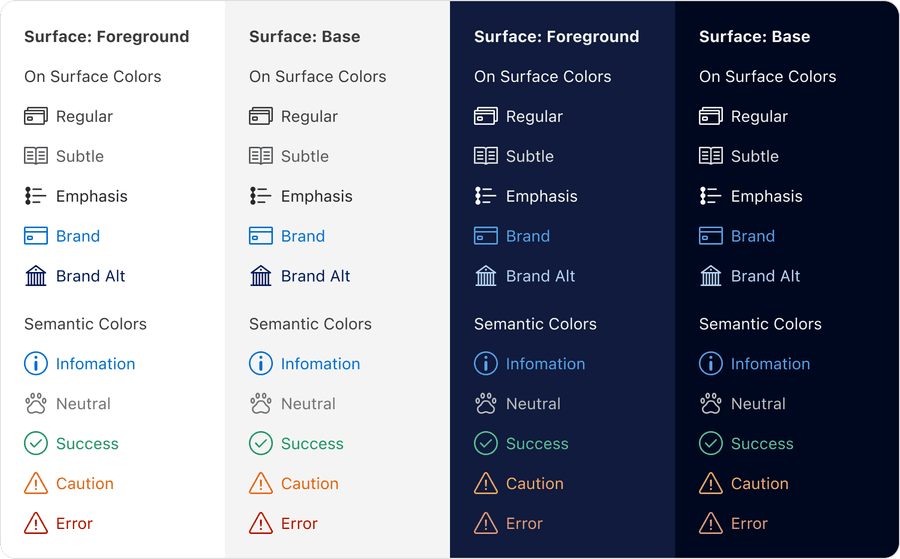
- Used on surface tokens to ensure that the icon colors maintain a at least 3:1 contrast with its background.
- Aim to match icon color with labels
- Check the color meaning in the color tokens
- When colors have meaning or represent a state, it’s an important visual indicator to our customers that is defined in a cohesive way across our system.
- For people with color vision deficiency, it can be hard to distinguish the difference between colors, usually, red, yellow, and green. Color should not be used as the only visual means of conveying information, indicating an action, prompting a response, or distinguishing a visual element. WCAG 2.1 Understanding 1.4.1
- Changing color may cause contrast issues. You need at 4.5:1 contrast for body text and 3:1 for graphics. Here’s our blog post on color accessibility which covers testing contrast.
Anatomy
End caps
American Express icons have rounded end caps.
Corner radius
When using this for rounding rectangles, you want to make sure all your corners have the same radius. Interior shapes will have a smaller radius than exterior shapes. At American Express we use rounded corner radius.
Outline vs. Filled Icons
DLS icons are designed in both outline and filled. Our default preference is outline icons however there are times when it is necessary to use filled icons. In v7+ we don’t recommend filling an icon on hover.
Additional Decorative elements
Many of the DLS icons have an additional decorative element featured at the bottom right.
Size & Grid
Size
Icons come in many sizes. They are sized for interactive, touch-friendly experiences. They can represent a command, file, device, or directory, as well as common actions (e.g. “Download”, “Help”, etc).
When creating icons its best to start with size 48px square. Explore universal metaphors that are easily understood. Pare down design elements to forms that can be quickly identified. Keep in mind that icons have outlined and filled states when exploring ideas.
The following sizes are carefully choses bases on our our 8x grid and most align with our most common typography line heights.
x-small
12px
small
16px
medium
24px
large
48px
Default Icon Size & Grid
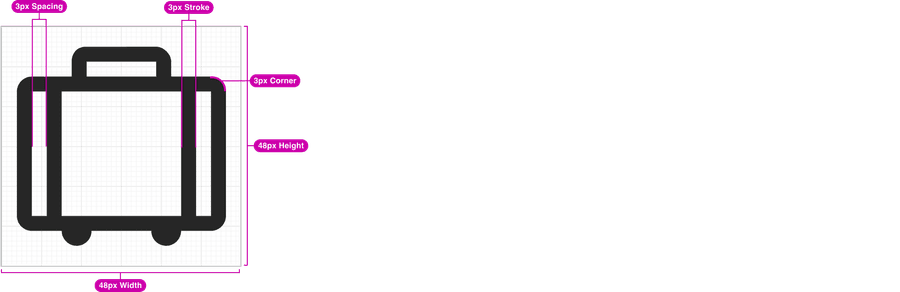
Designing on a grid helps maintain consistency across our icons and ensure that they look sharp across different resolutions. Our icons live on a 48x48px grid with strokes, corners, and interior spacing of 3px.
Creating Icons
If none of the icons in our icon library suit your needs, you can create your own icon. When creating your own icon, please follow the these steps:
- Review the design system icon library to ensure we do not have an icon that will work for your use case.
- If you need to create your own, continue reading the below guidelines before getting started.
- Once reviewing our guidelines, open our Figma Icon Template to get started. You will find more information there on how to create your own icon following our guidelines.
Please note that you can create and use your own icon without having to add it to the design system library. If you think other colleagues could benefit from having this icon in the design system library, please contribute it back! Please review our contribution submission process once your contribution is ready for our consideration.
Icon Guides
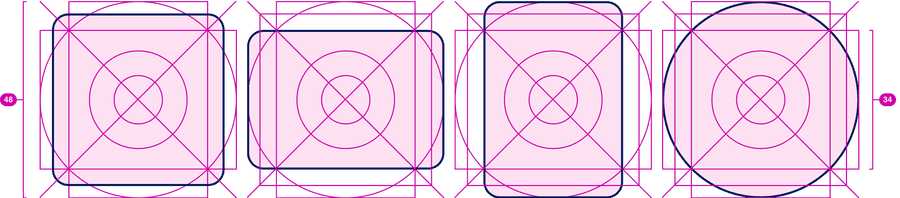
Determine the shape of your icon. The core shapes are used as boundaries to maintain key proportions and consistency when designing new icons. The overall shape of an icon can vary from a circle to a square, or from a tall rectangle to a wide one. Always start within the guide, so that all icons have the same visual weight.
These guidelines are a starting point, not a hard constraint. If it makes the concept stronger or keeps the icon optically aligned, it’s ok to deviate.
In the starter file there is a layer with the various guide shapes that you can turn on/off.
Designing Icons in Figma
In figma, use the icon component. The component has properties for Size: (X-Small/Small/Medium/Large), Icon Variant: swap default icon, filled/unfilled and alt text/decorative.
Figma Icon Template
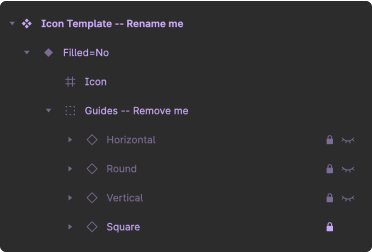
This Figma file contains a starter component with everything needed to design a DLS component from scratch. The icon template file includes shape guides within its layers. Select the shape that best represents the icon that you are designing.
Tip: You can turn on the visibility of the appropriate icon and then lock the layer to ensure you don’t accidentally select it while designing. Show and hide this layer as needed.
Updates
| Version | Change Date | Link |
|---|---|---|
| v7.0 | September 6th, 2024 | v7.0 Release notes |
Questions?
Connect with the DLS Team on Slack or by email.
Resources
Check out additional resources.