
Inline Link
Use the inline link component when your link is in a paragraph or sentence. Link should navigate you to a new page or to further information.
On this page
Best Practices
Be blue and underlined. This acts as a strong visual cue that the text is a link. Color and underline together are needed to be inclusive, we cannot rely on color as the only way to communicate information.
Dedicated active and hover styles. Differentiating the link style on hover or on click provides visual feedback that enhances usability.
Start with keywords. Keep link text short and concise. Inform users of where they will go, such as the page title or heading of the destination.
- To navigate to a different page
- To jump to an element on the same page
- Link to emails or phone numbers
- Navigate to a different site
- Use inside a paragraph or sentence
- Use links that are distinct, descriptive and consistent to help customers navigate the site
- Use links to take an action, such as delete.
- Use links to style a button
Recommendations
Inline Link Text
To make links more accessible, avoid these common wording pitfalls.
- Put the most important part of the link first, such as Update marketing preferences (marketingsettings)
- When navigating to a new site use the domain name in brackets or separated by a ‘|’ at the end of a link e.g. Log In | American Express US or Log In (American Express US)
- Add text links at the end of a sentence helps users to take action more quickly
- Only use punctuation for complete sentences and do not include the punctuation in your text link
- Don’t use verbiage, such as “link to,” “click here,” or “learn more” as it does not provide enough context
- Don’t use a URL as a link
- Don’t use ALL CAPS except for the purposes stated in the Guidelines section
- Give different labels to links that serve the same purpose
Links should make sense out of context and be clear in their purpose/destination. Links are semantically different to buttons and should always be identified as a link regardless of how users consume them.
Link Text Checklist
Not sure what to write? Use this checklist to help refine your link text
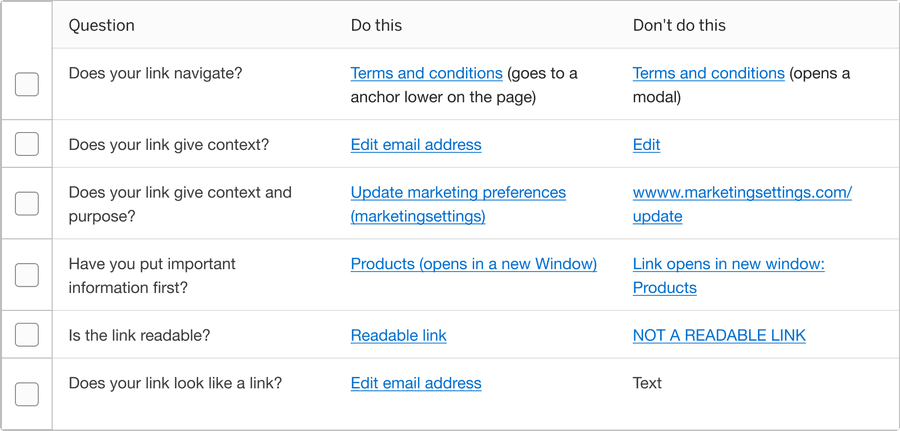
Creating Links
- Use non-empty href attributes to provide context.
- Use alt text for links that are just images or icons.
- Use title attributes appropriately, to clarify the purpose of a link.
- Give identical labels to links that serve the same purpose.
- Don’t use negative tabindex anywhere, including links, as this makes elements less accessible.
- Don’t directly link to new tabs or downloads.
Questions?
Connect with the DLS Team on Slack or by email.
Resources
Check out additional resources.