
Multi-Step Tracker
Multi-step trackers indicate a customer’s progress through a series of linear, discrete steps. While the individual steps may be unrelated to each other in content, as a whole they are required for the customer to complete the intended action.
On this page
Best Practices
Use multi-step tracker for processes with multiple discrete steps, such as when directing a customer through replacing a card or signing up for a service.
- To visualize the steps of a process
- To keep track of a task or process for example filling in a form
- To breakdown tasks or processes by disclosing information progressively
- Use sub-steps to breakdown complex tasks or processes into smaller achievable goals
- As tabs, multi-step tracker is not interactive
- If you have more than five steps. Aim for five or less. Instead use sub-steps to breakdown more complex tasks/processes.
Variations
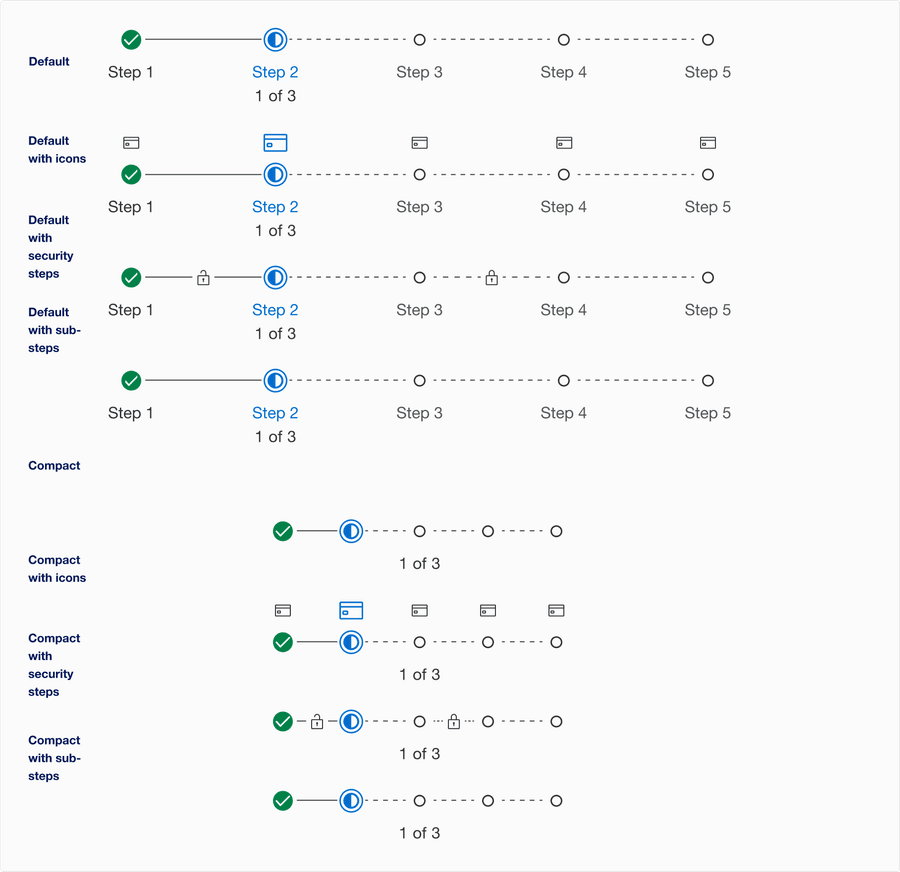
| Variation | Description |
|---|---|
| Default | Use default for larger breakpoints. Read more about when to use default in the responsive section. |
| Default with icons | Choose the appropriate Icon based on the buttons action. |
| Default with security steps | Show a security icon between two steps if a security, authentification or verification event is triggered. |
| Default with sub-steps | Use sub-steps to breakdown complex tasks or processes into smaller achievable goals |
| Compact | Use compact for smaller breakpoints or sidebar layout. |
| Compact with icons | Choose the appropriate Icon based on the buttons action. |
| Compact with security steps | Show a security icon between two steps if a security, authentification or verification event is triggered. |
| Compact with sub-steps | Use sub-steps to breakdown complex tasks or processes into smaller achievable goals |
Recommendations
Labels
Use short and descriptive labels to identify each step.
- Give each step a label
- Use short a descriptive labels
- Keep it short, target a length of one to three words with no more than five
- Use title case, like “Almost Every Word is Capitalized”
- For compact size always show current step label on the page
- Don’t remove labels
- Although icons may be used for multi-step tracker, the label shouldn’t be removed as we cannot rely on the icons alone. Complex steps can be hard to identify with icons, for example what icon do you use for ‘forecast review’? Stick to simple metaphors, such as the calendar icon along with the label ’forecast review’
- For accessibility, we need to make sure we use icons for the same meaning and name throughout our website.
For example in our step ‘forecast review’, the calendar icon looks like a calendar, is called calendar icon, and is not renamed to forecast review.
Consistent identification accessibility standards
Using Icons
Icons used within multi-step tracker should be simple, with well known visual metaphors, such as plus for add, person for account, card for card details, or padlock for security.
- Use simple well known icons for example card for step ‘card details’
- Take real world examples for example padlock for security
- Be consistent. Always use the same icon for a step.
- Think customer consistency. Follow the icon names available in our icon library for the actions when possible.
- Consider icon meaning and localization
- Don’t use different icons for the same step, for example card for incomplete and card benefit for complete state.
- Don’t use the same icon for different steps
- Don’t use complex icons
- Icons need to be simple and easy to understand.
- For accessibility, we need to make sure we use icons for the same meaning throughout our website. Consistent identification accessibility standards.
- Remember: the more complex the icon, the longer a user spends understanding them.
Layout
Here are examples of how to use the multi-step tracker on a page, remember it’s important to have a unique heading for each step and sub-step.
Each page must have a title and logical structure that is visual but also programmatically determined using HTML components such as
or . Sighted users perceive structure and relationships through various visual cues, making these structures and relationships programmatically determined or available in text ensures that important information will be perceivable to all. Adaptable accessibility guidelinesDefault multi-step tracker with heading
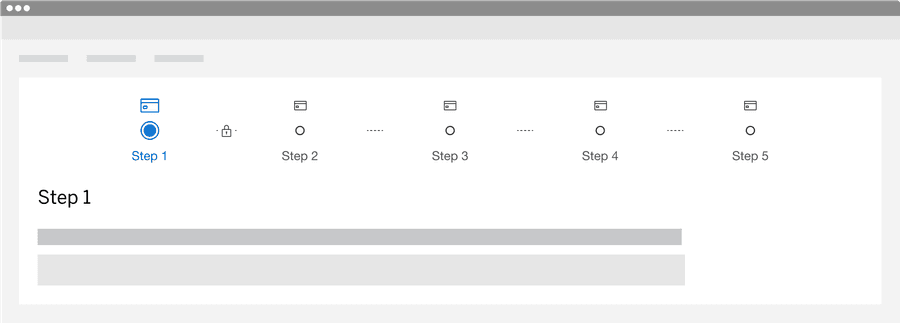
Compact multi-step tracker with heading
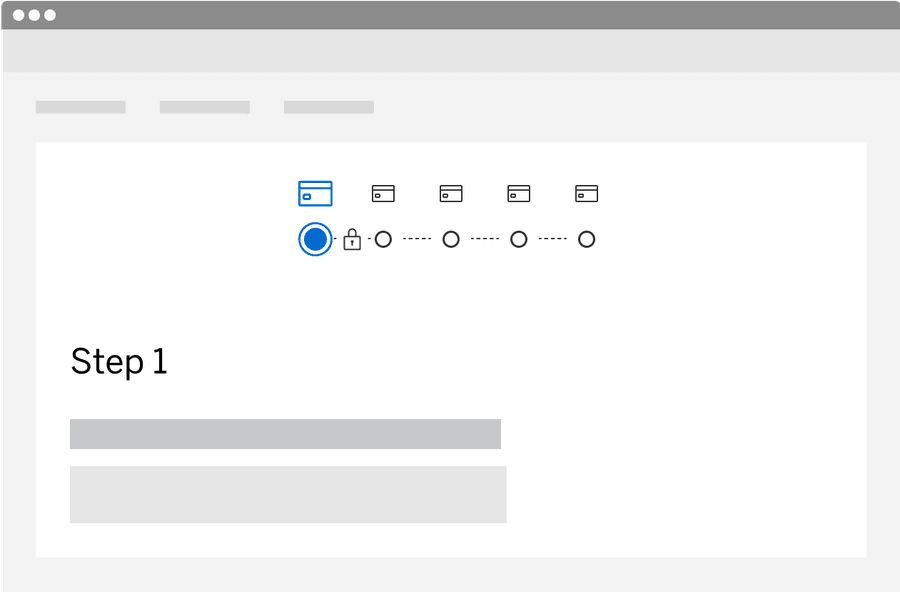
Sidebar multi-step tracker with heading
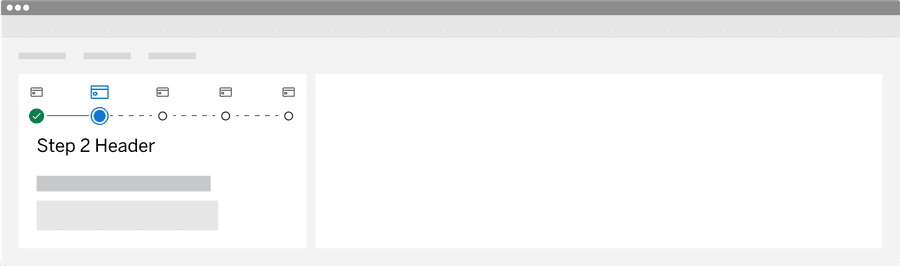
Sub-Steps
Use sub-steps to breakdown complex tasks or processes into smaller achievable goals. Try breaking up the process into two or more separate journeys before considering sub-steps.
- Aim to have no more than 3 sub-steps per step
- Give each sub-step a unique heading on the page
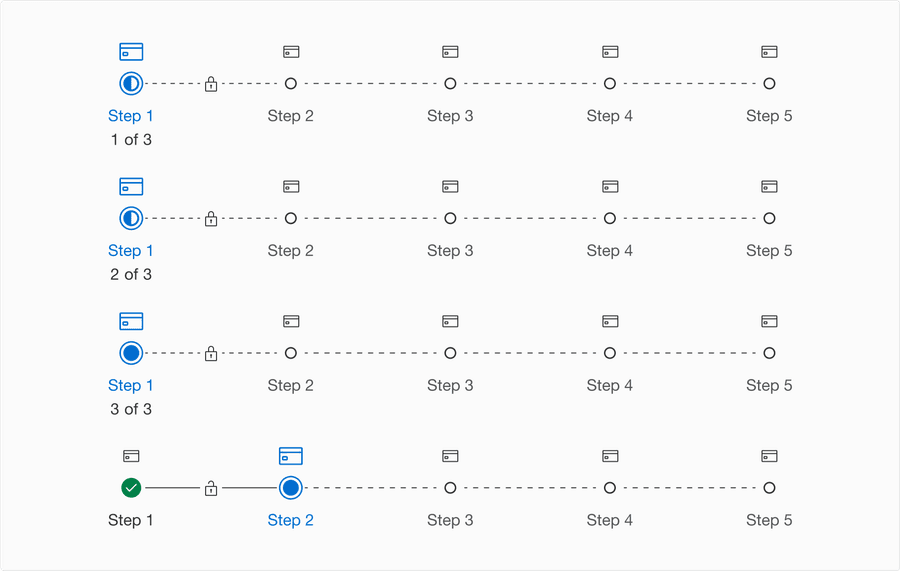
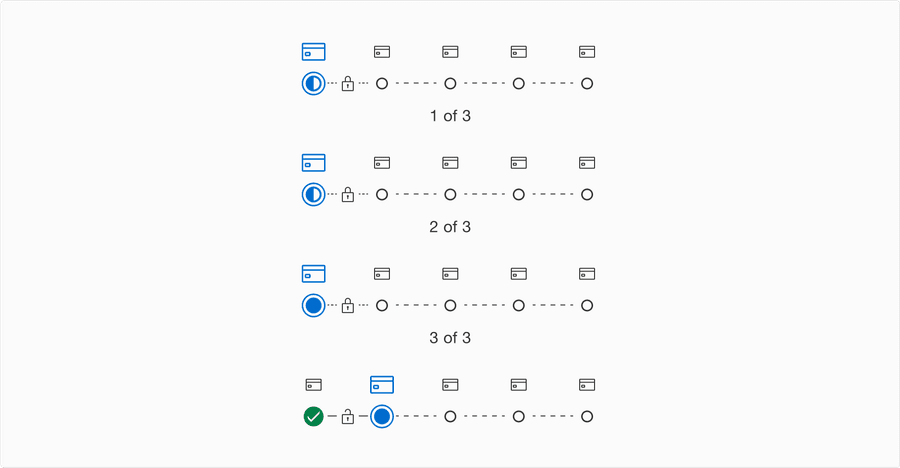
Sub-Steps Layout
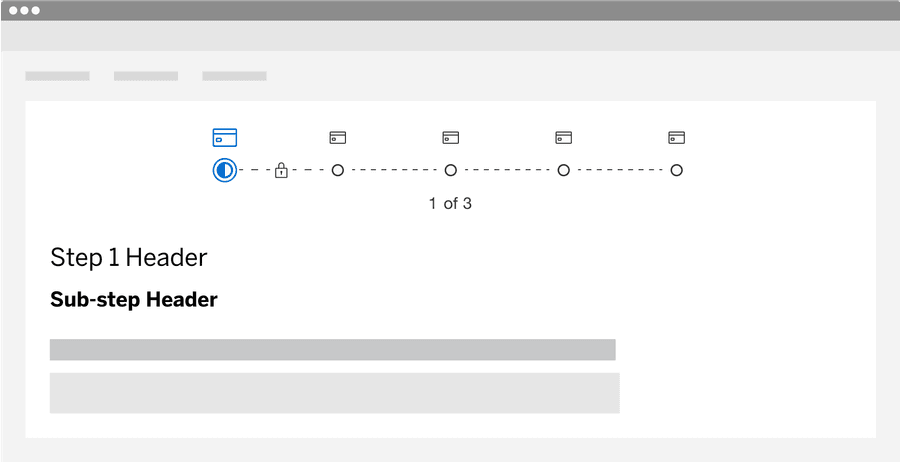
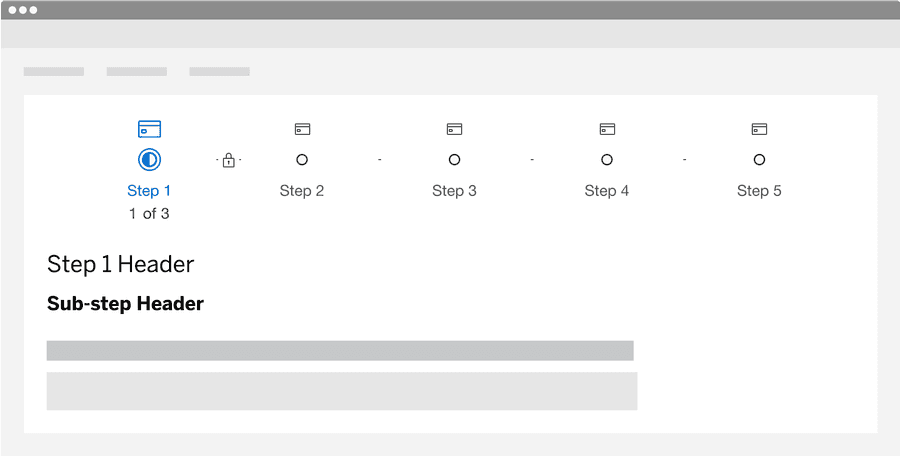
Here are examples of how to use the multi-step tracker with sub-steps on a page, remember it’s important to have a unique heading for each step and sub-step.
Default multi-step tracker with heading
Compact multi-step tracker with heading
Responsive
Multi-step tracker has two sizes; default and compact. Default will reflow to compact for smaller breakpoints or when under 500px width.
All pages must be responsive and reflow to a minimum of 320px. Multi-step tracker’s compact variation will reflow to a minimum of 200px (12.5rem), to allow for margins and grid gutters. Reflow accessibility standard
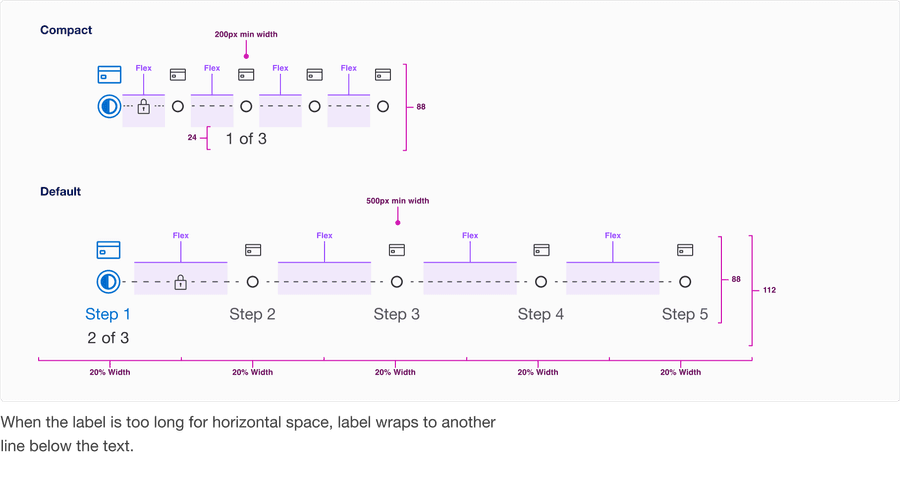
When the label is too long for horizontal space, label wraps to another line below the text.
Questions?
Connect with the DLS Team on Slack or by email.
Resources
Check out additional resources.